Shopify API Setup
Follow this guide to provision Shopify API credentials so we can keep your Local Leo catalog in sync with your Shopify store.
Important: You'll need admin access to your Shopify store to complete these steps.
Step 1: Access Shopify Admin Settings
- Log in to your Shopify Admin panel
- Navigate to "Settings > Apps and sales channels"
- Click "Develop apps" in the top-right corner.
(If you don't see this option, please click "Allow custom app development", read the warning and information provided, and then click "Allow custom app development".)
Step 2: Create a Custom App
- Click "Create an app"
- Enter an app name (e.g., "Local Leo Integration")
- Select the app developer (store owner or staff member with appropriate permissions)
Step 3: Configure API Scopes
You'll need to configure the appropriate API scopes to allow Local Leo to sync your catalog:
- Go to "Configure Admin API scopes" (do not go to "Storefront API")
- Select the following required scopes - most can be simply "Read" permissions:
- Discounts - For more accurate pricing information
- Inventory - To enable us to keep stock levels updated
- Metaobject definitions
- Metaobject entries
- Online Store navigation - For categories
- Price rules - For more accurate pricing information
- Products - To sync your product catalog
- Publications - To sync your product catalog
- Shop locales - For localization support
- Store content - For store information
- Translations - For product translations
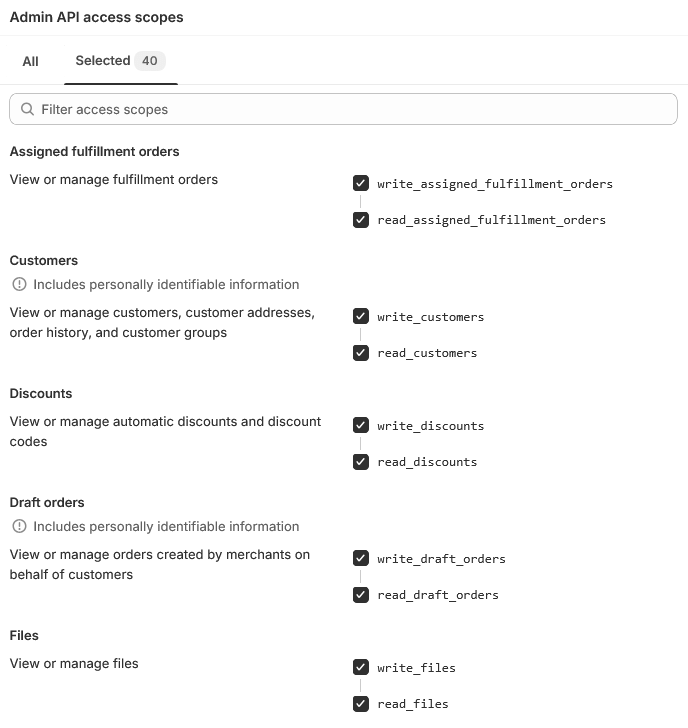
- Click "Save" to save your changes
Note: Some scopes are marked as "Required" for all integrations.
Step 4: Install App and Generate Access Token
- Navigate to the "API credentials" tab
- Click "Install app" on the top-right corner and then click "Install" in the popup box
- Click "Reveal token once" to generate your Access Token as shown below:
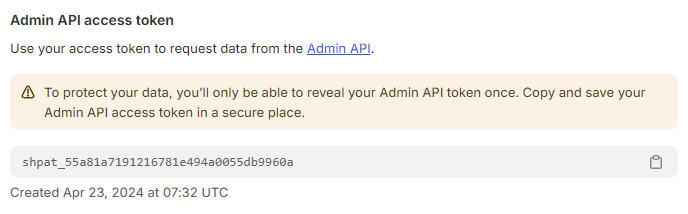
- Important: Copy and save this token immediately - you won't be able to see it again
Step 5: Provide Credentials to Local Leo
Once you have your API credentials, you'll need to provide the following information to Local Leo:
- Store URL: Your admin URL in the format
https://your-store-name.myshopify.com - Access Token: The token you generated in Step 4
Security Notice: Your Access Token is highly sensitive. Protect it carefully and never share it publicly. Local Leo will store this securely and use it only for authorized catalog synchronization.
Additional Configuration Notes
- The integration will respect your store's existing privacy and notification settings
- You can modify or revoke API access at any time through your Shopify admin panel