Wix API Setup
Follow this guide to provision Wix API credentials so we can keep your Local Leo catalog in sync with your Wix store.
Step 1: Generate an API Key
- Log in to your Wix Admin panel
- Go to the API Keys page (to manually go there, click on your user icon in Wix, click on 'Account Settings' and then 'API Keys')
- Click "+ Generate API Key"
- Type in a name (eg 'local-leo-sync') and under permissions click 'See all' under 'All site permissions' and tick 'Wix Stores', and 'Wix Reviews'. Then click 'Generate Key' at the top. The page should look like this:
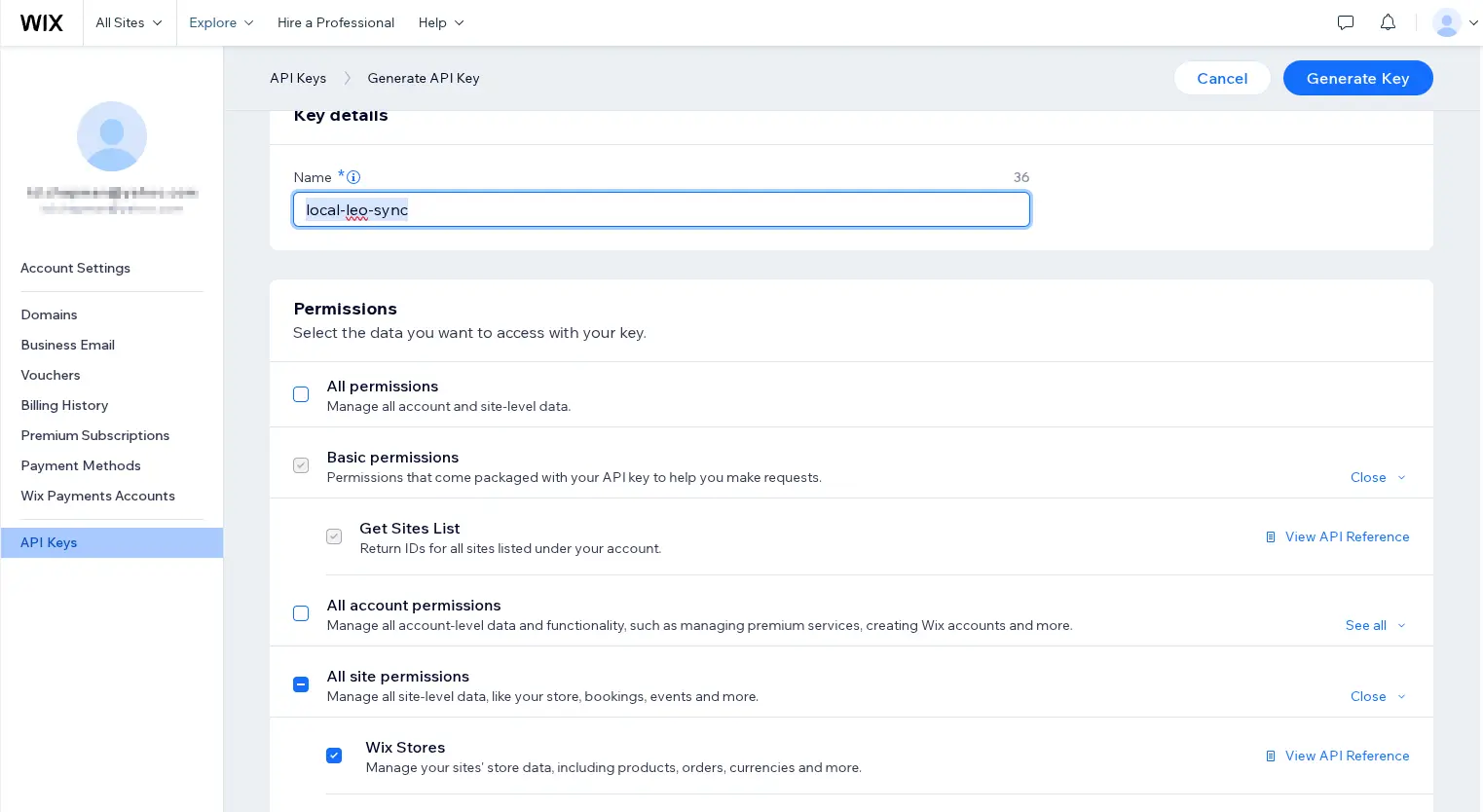
- Copy the generated API key (it will only be visible once).
Step 2: Get your Site ID
- In the admin interface, click on the 'All sites' dropdown and select the site you want Local Leo to sync with
- The URL for that site will look like this:
https://manage.wix.com/dashboard/df2cb02d-192a-48bb-a66d-e55b6cd14c99?referralInfo=sites-dropdown
. Either send us the full URL of that page, or just the "Site ID" which in this case isdf2cb02d-192a-48bb-a66d-e55b6cd14c99
Step 3: Provide Credentials to Local Leo
Once you have your API credentials, you'll need to provide the following information to Local Leo:
- Wix API Key: As generated in Step 1
- Your site ID: As found in Step 2. If you have multiple sites you wish for us to sync with, just send us each of those - we can handle them all from the same API key.
Security Best Practices:
- API keys are linked to specific user accounts - if you delete the user we will be unable to update your products
Additional Configuration Notes
- The integration will respect your store's existing privacy and security settings
- You can modify or revoke API access at any time through the API Keys page
Need Help?
If you encounter any issues during setup or have questions about the integration process, please contact our support team. We're here to help you get your store connected smoothly.