WooCommerce API Setup
Follow this guide to provision WooCommerce REST API credentials so we can keep your Local Leo catalog in sync with your WooCommerce store.
Requirements: Your WordPress site must have permalinks set to a human-readable format (not "Plain") for the REST API to work properly.
Step 1: Access WooCommerce Settings
- Log in to your WordPress Admin panel
- Navigate to "WooCommerce → Settings → Advanced → REST API"The page should look like this:
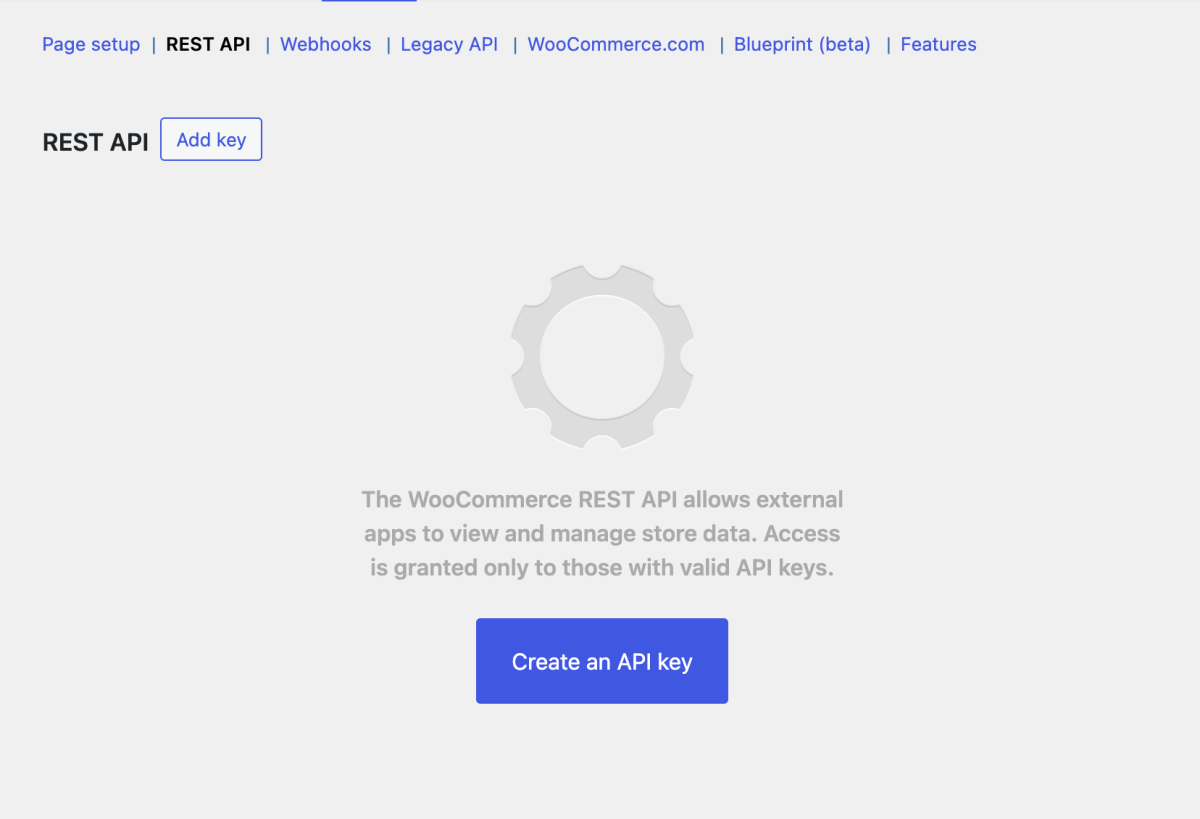
- Click "Add Key" or "Create an API key".
Step 2: Configure API Key Settings
- Enter a Description for the key (e.g., "Local Leo Integration")
- Select the User - choose a WordPress user with appropriate permissions
- Choose Permissions:
- Read - For basic catalog synchronization
- Click "Generate API Key"
Step 3: Save Your API Credentials
After generating the API key, you'll see two important pieces of information:
- Consumer Key - Your API username
- Consumer Secret - Your API password
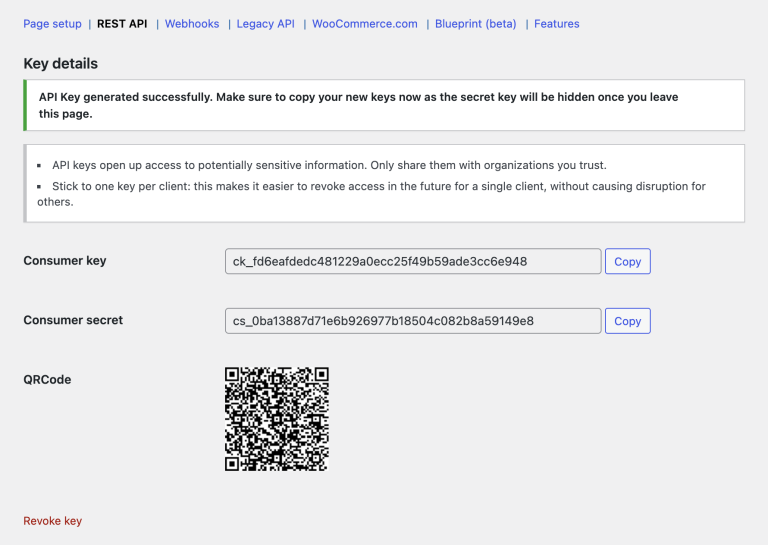
Important: Copy and save both the Consumer Key and Consumer Secret immediately. The Consumer Secret will not be displayed again for security reasons.
Step 4: Provide Credentials to Local Leo
Once you have your API credentials, you'll need to provide the following information to Local Leo:
- Store URL: Your WooCommerce store URL (e.g.,
https://yourstore.com) - Consumer Key: The consumer key generated in Step 3
- Consumer Secret: The consumer secret generated in Step 3
Security Best Practices:
- API keys are linked to specific user accounts - if you delete the user we will be unable to update your products
- Keep your Consumer Key and Consumer Secret confidential
- You could use a dedicated user account with minimal required permissions
Additional Configuration Notes
- The integration will respect your store's existing privacy and security settings
- You can modify or revoke API access at any time through your WooCommerce settings
Need Help?
If you encounter any issues during setup or have questions about the integration process, please contact our support team. We're here to help you get your store connected smoothly.